Windows MDM + Monitor
Windows PCs,
managed from the same desk
Enrol a PC with the Monitor installer or straight into Windows MDM with a code. Set password and update rules, Defender, firewall, BitLocker, accounts, apps and kiosk by group. Wipe or reset it from the console. And when you choose, understand the workday with Monitor, an agent that shows itself.
Device management
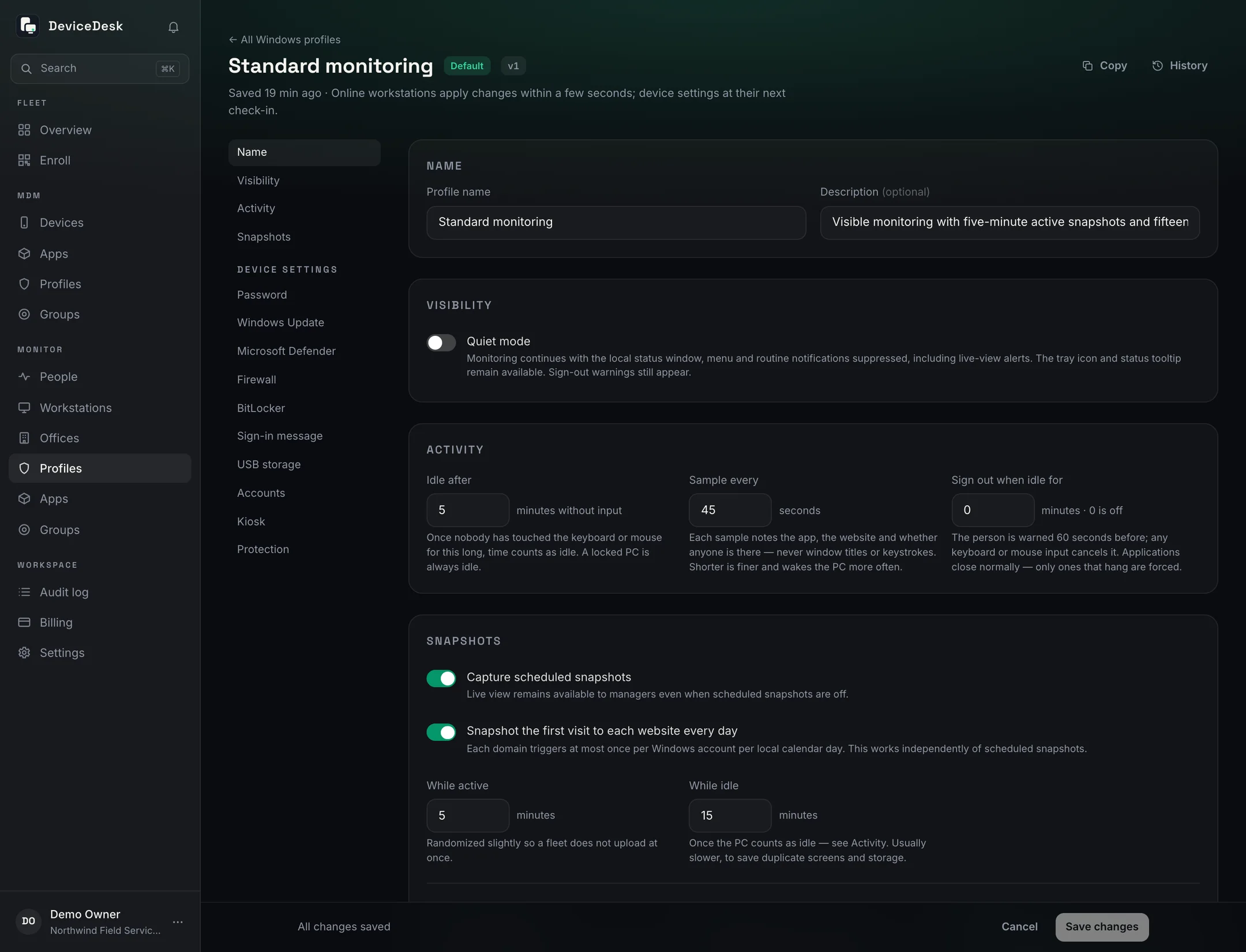
One Windows profile per group, applied at the next check-in
Device settings live in the Windows profile beside the monitoring rules, so a group of PCs gets one policy. Each setting reports back per device, and the profile page shows which workstations could not apply it and why.
Password and Windows Update rules
Minimum length, complexity and expiry for local accounts; how and when Windows Update installs, so a fleet patches on your schedule, not Microsoft's.
Defender, firewall and BitLocker
Real-time protection, the firewall on every network, and drive encryption with the recovery keys kept in the console, shown on demand and recorded under the viewer's name.
Accounts on the PC
Who can sign in, as administrator or standard user. Add or remove accounts, reset passwords, block Microsoft accounts, and keep DeviceDesk's own administrator account with a password only the console knows.
Apps by group
Upload an MSI or EXE once and choose the groups whose PCs get it. Each device reports installed, not installed with Windows' reason, or waiting. Store apps go over Windows MDM.
Kiosk
Microsoft Edge on a web address, one Store app, or a set of apps with its own Start pins, under a kiosk account Windows signs in by itself.
Wipe, reset, restart
Erase everything, reinstall Windows keeping people's files, or take a cloud reset, each offered only where the PC can take it. Restart, shut down or put a message on the screen in between.
Inventory
Hardware, the full software list, edition and activation, and security posture, sent a few minutes after Monitor starts and then daily. Software changes land on the workstation's timeline.
Sign-in message and USB storage
A notice on the sign-in screen, and removable storage allowed or blocked, applied by group and reported back per device.
Results across the fleet
Every setting's outcome on every workstation on one page, with the ones that could not apply it and why, so a policy is a fact rather than a hope.
Enrolment
Two doors in, one workstation
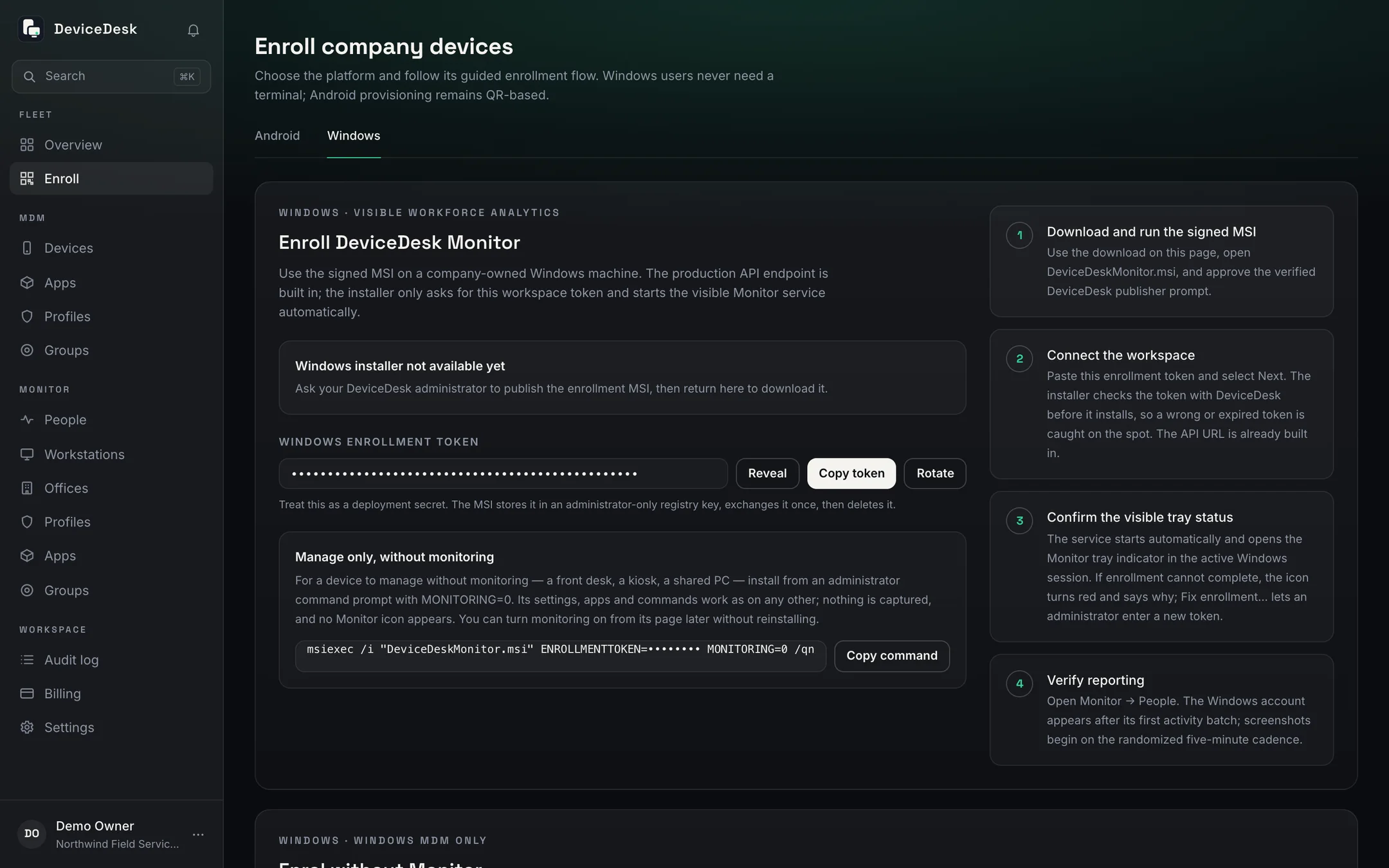
Run the Monitor installer with your workspace token, or enrol the PC into Windows MDM with a code and no Monitor at all. Either way it is one workstation in the console, and Monitor can be installed later over Windows MDM without touching the PC.
- The installer checks the token with DeviceDesk before it installs, so a wrong one is caught on the spot
- Manage only, without monitoring: a front desk, a kiosk or a shared PC with nothing captured and no tray icon
- Windows MDM enrolment renews its own certificate; the console says what to do if it hasn't
- Monitor stays put: uninstall is blocked and a reinstall can be sent from the console
Monitor
See the workday.
Respect the worker.
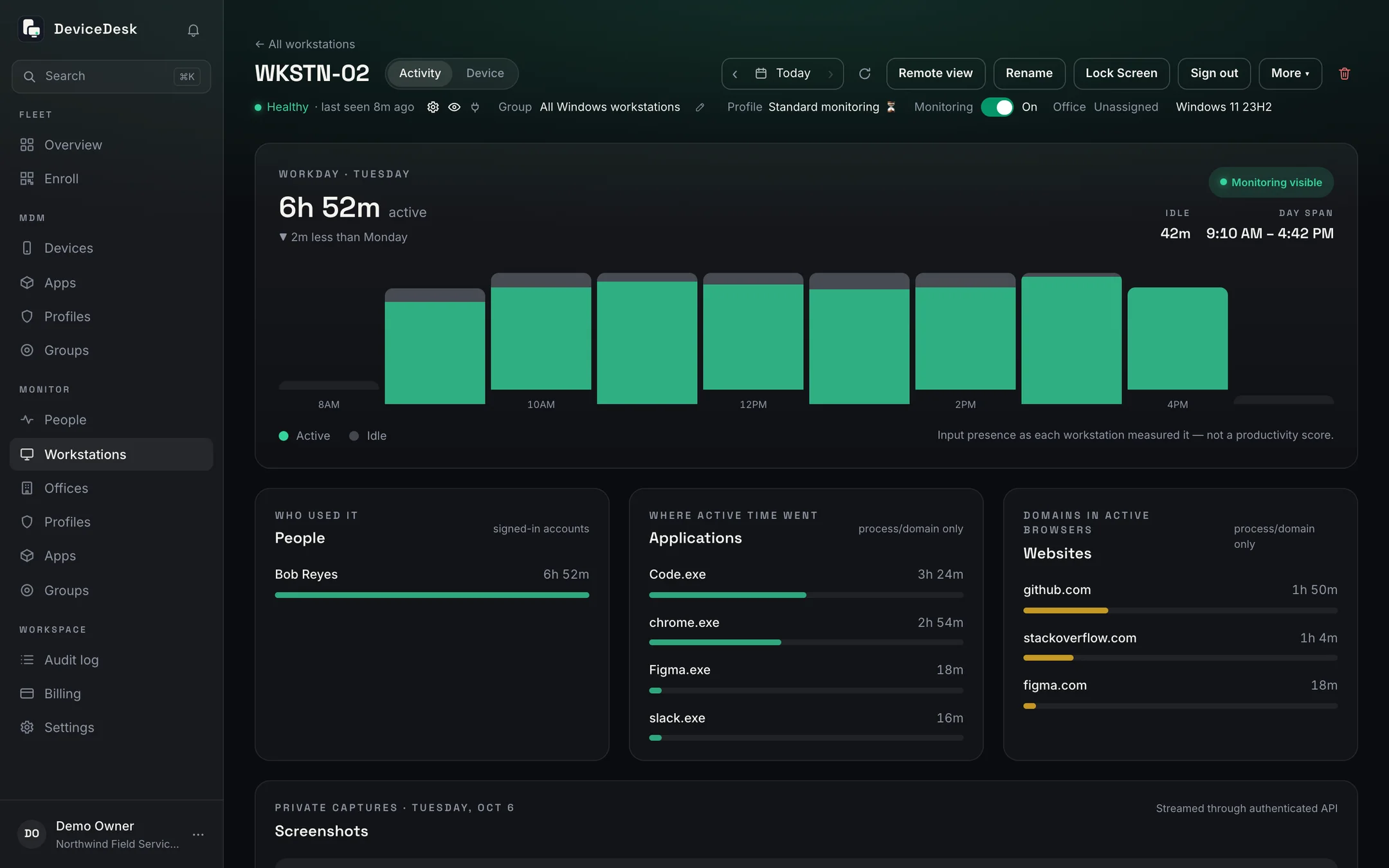
Switch monitoring on per workstation and Monitor records which app had focus, the website's domain, and whether someone was there, hour by hour. Never what was typed, never window titles, never full addresses.
Activity timelines
Active and idle by the hour, per person and per workstation, with the day span and yesterday's comparison.
Apps and sites
Where the hours went by application and domain. Exported as CSV from the People page.
Live view, announced
Look at a screen when you need to; the person sees it in their status window, and control stays off.
Lock and sign out
Lock Screen or sign out a PC from the console, and sign out idle sessions automatically after a warning.
Visible by design
The person being monitored can read the same list you can
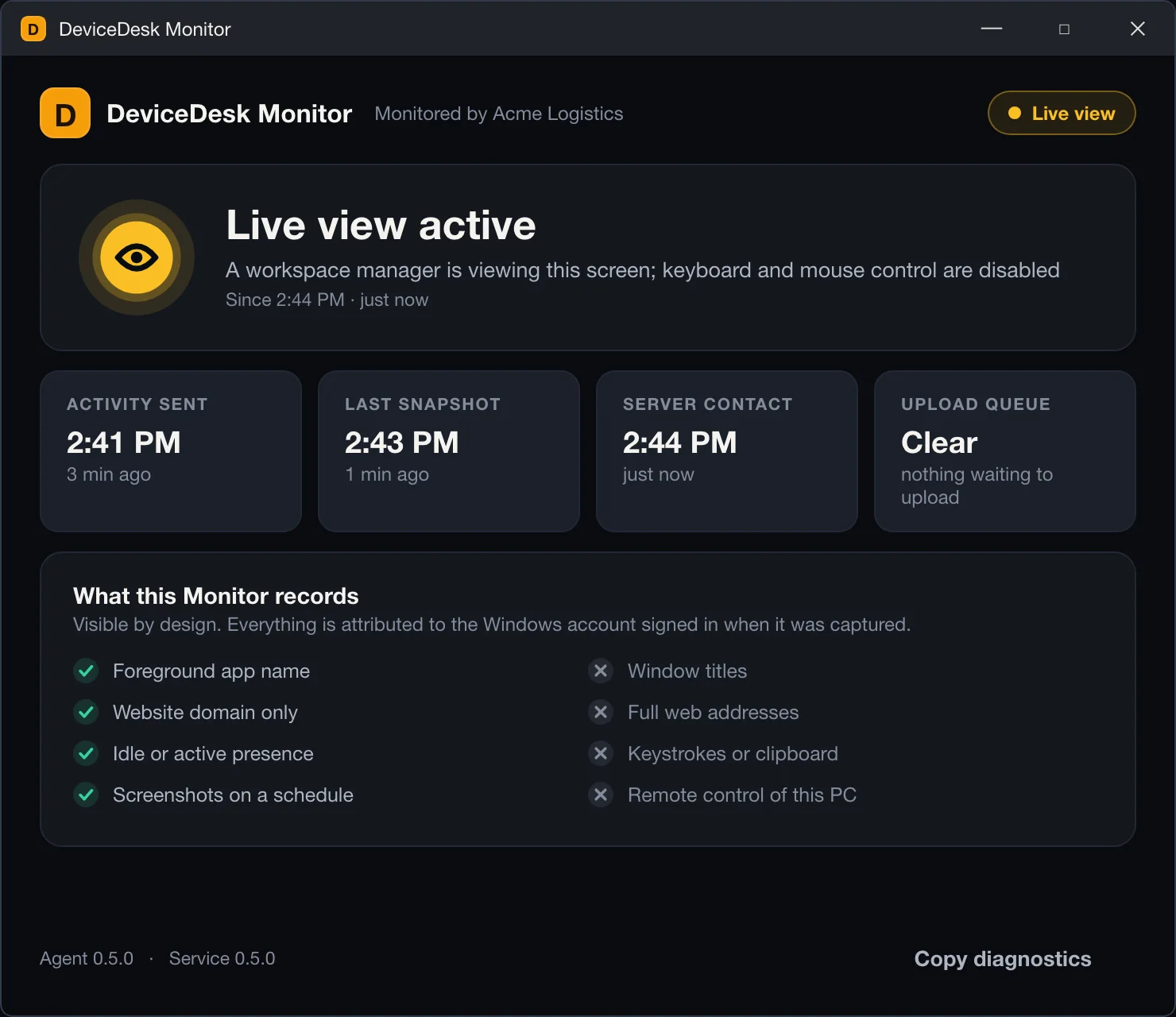
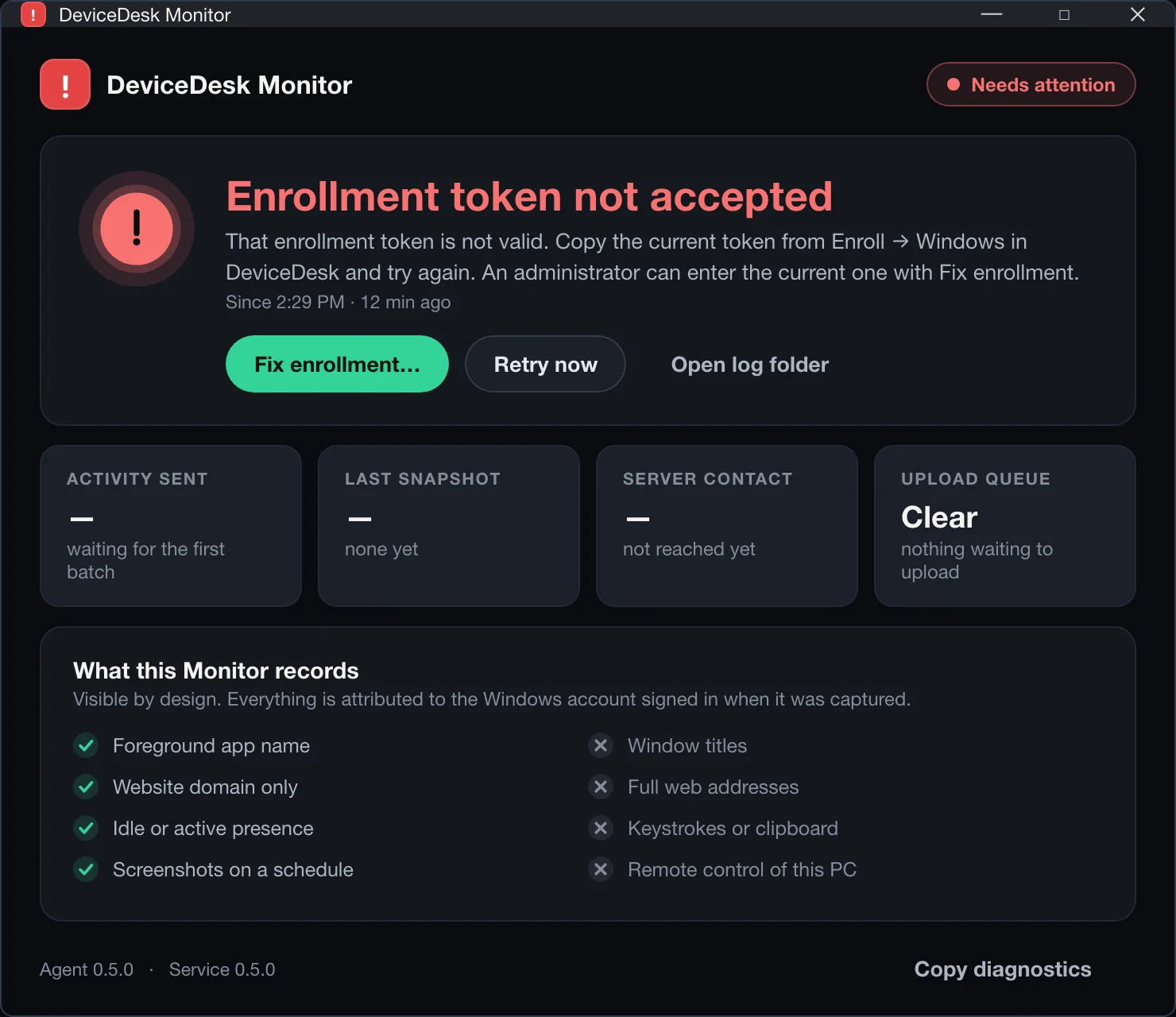
Monitor's status window sits in the tray of every workstation it runs on. It shows when activity and snapshots were last sent, whether a manager is viewing the screen, and what is and isn't recorded. Everything is attributed to the Windows account that was signed in when it was captured.
- Foreground app name
- Website domain only
- Idle or active presence
- Screenshots on a schedule
- Window titles
- Full web addresses
- Keystrokes or clipboard
- Remote control of the PC
Background monitoring
Stays out of the way, and says so when it can't
Choose how Monitor appears on your team's workstations. Quiet mode suppresses the local status window, menu and routine notifications, including live-view alerts. The tray icon and status tooltip remain, and when enrolment or capture breaks, the window turns red and explains the fix.
Tray status indicator
The DeviceDesk tray icon and status tooltip remain available while the agent runs, including in Quiet mode. Windows may place the icon in the tray overflow.
Managed through profiles
Administrators choose Quiet mode per Windows profile and apply that profile to workstation groups.
No keystroke logging
We record which app had focus, never what was typed into it. There is no keylogger to enable.
Retention, stated
Activity is kept for 90 days, screenshots for 30 and workstation timelines for 90, then swept nightly. Forgetting a workstation removes it from the fleet.
Put your PCs on the desk
Seven days free on the full product, then one device free forever. Enrol a PC with the installer or a Windows MDM code, and it appears in the console at its first check-in.